This article is part of the “Introduction to E2E Testing with Reqnroll × Playwright” series.
Reqnroll + Playwright: Add Screenshots to HTML Reports
Conclusion
You can embed Playwright screenshots directly into Reqnroll HTML reports using the Output API.
This makes debugging failed E2E tests much easier by showing the exact UI state at each step.
What You’ll Learn
In this guide, you’ll learn:
- How to capture screenshots with Playwright
- How to configure Reqnroll HTML reports
- How to attach screenshots to step logs
- How to improve debugging with visual reports
This setup is ideal for .NET E2E testing with Reqnroll and Playwright.
Why Add Screenshots to Test Reports?
When E2E tests fail, logs alone are often not enough.
Screenshots help you:
- Understand UI state at failure
- Debug faster
- Share visual evidence with your team
Adding screenshots to reports is a best practice for UI testing.
Create a Screenshot Helper
First, create a helper class to capture screenshots.
using Microsoft.Playwright;

public static class ScreenshotHelper
{
    public static async Task<string> CaptureAsync(IPage page)
    {
        var dir = "TestResults/screenshots";

        if (!Directory.Exists(dir))
        {
            Directory.CreateDirectory(dir);
        }

        var fileName = $"{DateTime.Now:yyyyMMddHHmmss}.png";
        var path = Path.Combine(dir, fileName);

        await page.ScreenshotAsync(new PageScreenshotOptions
        {
            Path = path,
            FullPage = true
        });

        return path;
    }
}
Key Point
FullPage = truecaptures the entire page, not just the viewport.
Configure HTML Report Output
Set up the HTML report in reqnroll.json.
{
  "$schema": "https://schemas.reqnroll.net/reqnroll-config-latest.json",
  "formatters": {
    "html": {
      "outputFilePath": "TestResults/TestReport.html"
    }
  }
}
Tip
Use a consistent folder like TestResults so screenshots and reports are easy to manage.
Prepare Playwright Hooks
Use Hooks to manage browser lifecycle:
The Page instance created here will be used for screenshots.
Attach Screenshots in Step Definitions
Use Reqnroll’s Output API to attach screenshots.
using Reqnroll;

[Binding]
public class SampleSteps
{
    private readonly IReqnrollOutputHelper _output;

    public SampleSteps(IReqnrollOutputHelper outputHelper)
    {
        _output = outputHelper;
    }

    [Given("I open the site")]
    public async Task OpenSite()
    {
        await PlaywrightHooks.Page.GotoAsync("https://playwright.dev/");

        var path = await ScreenshotHelper.CaptureAsync(PlaywrightHooks.Page);

        _output.AddAttachment(path);
    }
}
What This Does
- Captures a screenshot during the step
- Attaches it to the HTML report
- Displays it inline in the step log
How It Works
Execution Flow
- Run tests with
dotnet test - Screenshots are saved to: TestResults/screenshots
- HTML report is generated: TestResults/TestReport.html
- Open the report in your browser
※The original article is in Japanese, so the images are in Japanese.
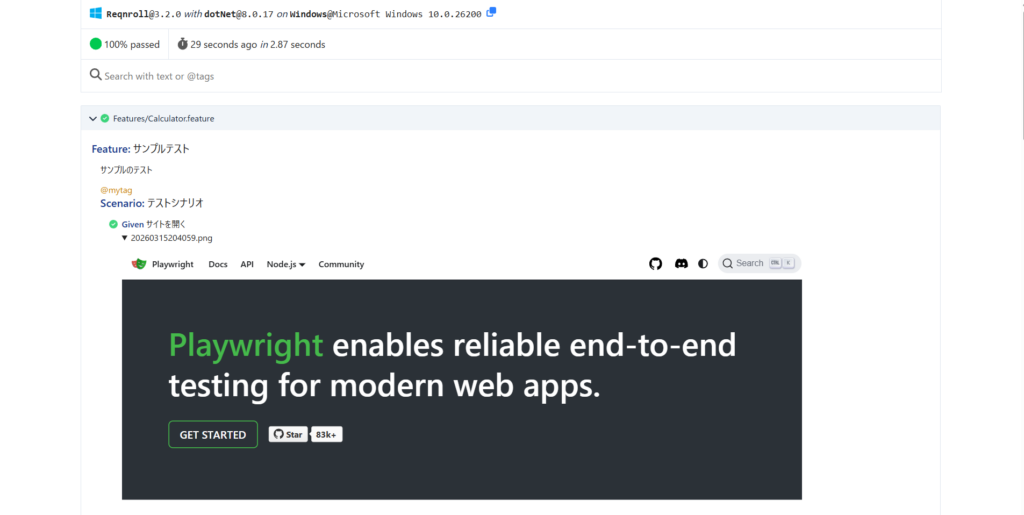
You will see screenshots embedded in each step.
Output API Overview
IReqnrollOutputHelper provides:
WriteLine()→ output text logsAddAttachment()→ attach files (images, etc.)
This is automatically injected into your Step Definition class.
Best Practices
Capture on Important Steps
Avoid taking screenshots for every step—focus on:
- Navigation
- Form submission
- Critical actions
Capture on Failure
Enhance your setup by capturing screenshots only when tests fail (using Hooks).
Use Clear File Naming
Include timestamps or scenario names for easier tracking.
Summary
Adding screenshots to Reqnroll HTML reports is simple and powerful.
Key takeaways:
- Use a helper class to capture screenshots
- Configure HTML reports in
reqnroll.json - Use
IReqnrollOutputHelper.AddAttachment() - Store screenshots in a consistent folder
With this setup, your E2E tests become much easier to debug and share, especially in team environments.