
This article is part of the “Introduction to E2E Testing with Reqnroll × Playwright” series.
Reqnroll HTML Report: Generate Test Reports with Formatters
Conclusion
You can generate clean HTML test reports in Reqnroll by configuring Formatters in reqnroll.json.
This allows you to visualize Feature, Scenario, and Step results and easily share test outcomes with your team.
What You’ll Learn
In this guide, you’ll learn:
- What Reqnroll Formatters are
- How to generate HTML test reports
- How to configure
reqnroll.json - What information is included in the report
- When to use Messages Formatter
This is essential for teams using BDD testing in .NET.
What Are Reqnroll Formatters?
Formatters are a feature in Reqnroll that output test results in specific formats.
You can export results as:
- HTML reports
- Cucumber Messages format
This makes it easy to store, analyze, and share test execution results.
Available Formatters in Reqnroll
Reqnroll provides the following main formatters:
| Formatter | Description |
|---|---|
| HTML Formatter | Generates a readable HTML report |
| Messages Formatter | Outputs Cucumber Messages format |
For most use cases, the HTML Formatter is the best starting point.
How to Generate an HTML Report
Step 1: Configure reqnroll.json
Create a reqnroll.json file in your project root and add:
{
  "$schema": "https://schemas.reqnroll.net/reqnroll-config-latest.json",
  "formatters": {
    "html": {
      "outputFilePath": "reqnroll-report.html"
    }
  }
}
Step 2: Run Tests
Execute your tests as usual:
dotnet test
Step 3: Open the Report
After running tests, the report is generated in:
bin/Debug/net8.0/reqnroll-report.html
Open this file in your browser to view the results.
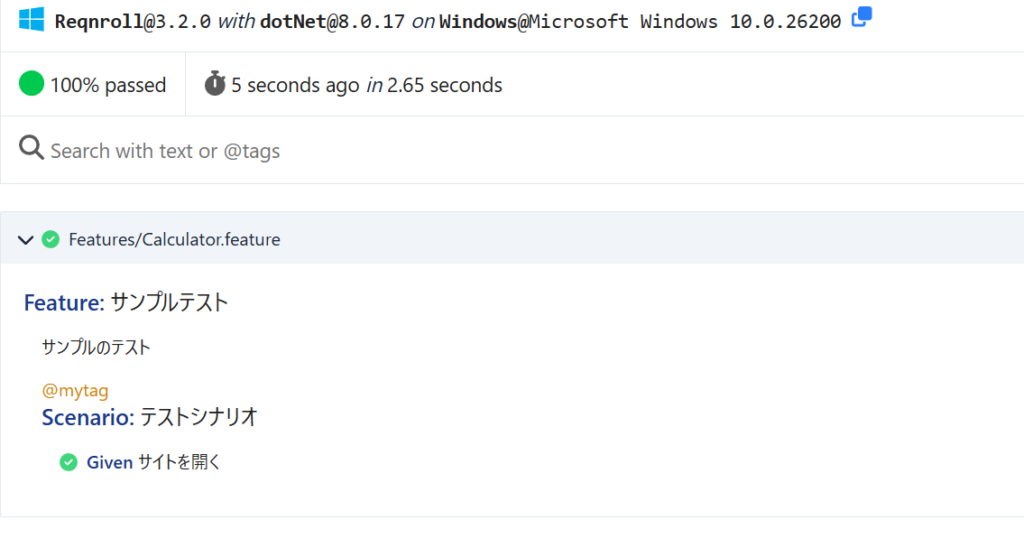
What’s Included in the HTML Report?
The generated report includes:
- Feature names
- Scenario details
- Step execution results
- Pass / Fail status
- Execution time
Example Structure
Feature: Sample Test

Scenario: Basic scenario
  Given I open the site
You can quickly understand test outcomes at a glance.
※The original article is in Japanese, so the images are in Japanese.
Using Messages Formatter
The Messages Formatter outputs results in Cucumber Messages format.
Example Configuration
{
  "formatters": {
    "messages": {
      "outputFilePath": "reqnroll-report.ndjson"
    }
  }
}
When to Use It
Use this format when integrating with advanced reporting tools:
- Allure Report
- ReportPortal
These tools provide more advanced dashboards and analytics.
Benefits of Using Formatters
Shareable Test Results
You can generate HTML reports and share them with your team or stakeholders.
Better Visibility
Understand results at the:
- Feature level
- Scenario level
- Step level
Easy Setup
No complex configuration required—just update reqnroll.json.
Best Practices
Always Generate Reports in CI
Include HTML report generation in your CI/CD pipeline to track test results over time.
Use HTML for Simplicity
Start with HTML Formatter before moving to advanced tools.
Combine with Screenshots
Enhance reports by adding screenshots (e.g., with Playwright).
Summary
Reqnroll Formatters make it easy to generate test reports.
Key takeaways:
- Use Formatters to export test results
- Configure HTML output in
reqnroll.json - Run
dotnet testto generate reports automatically - Use Messages Formatter for advanced integrations
If you’re using Reqnroll for BDD testing, adding HTML reports is a must for visibility and team collaboration.